Configure Store
- Select the store you wish to configure by clicking on the store selection button on the top right of the screen.
- Choose the store from the list.
- If you have only one store, this will automatically be selected.
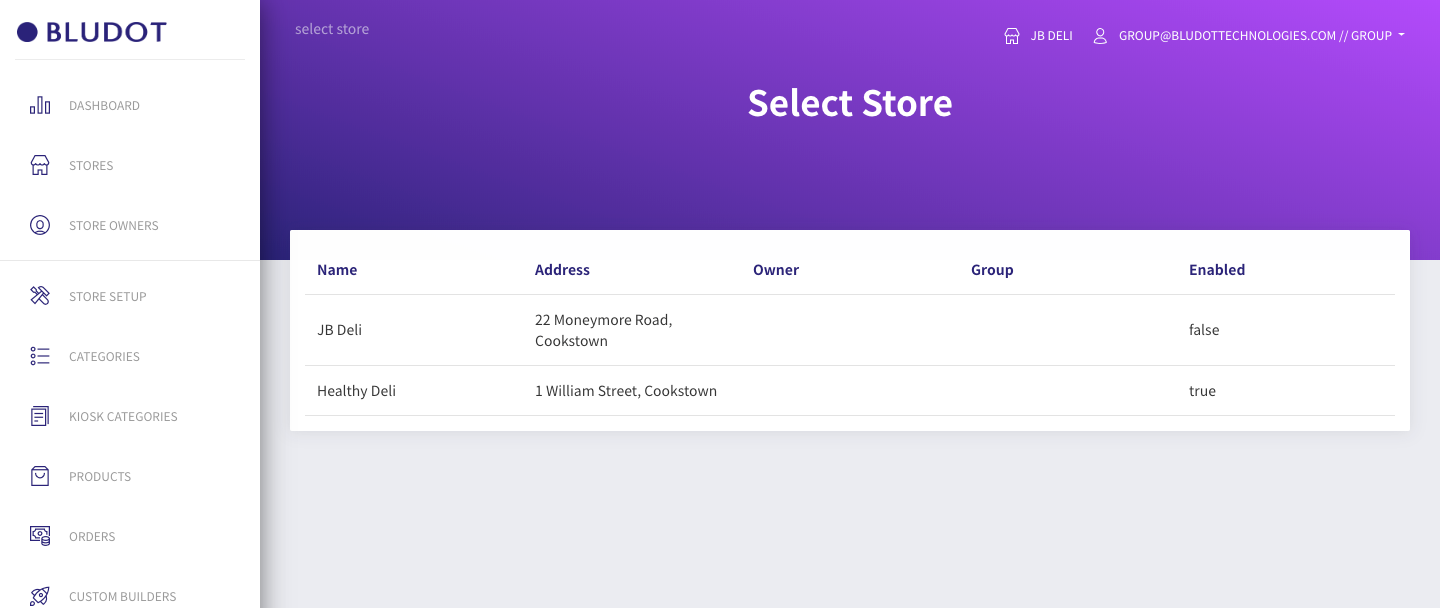
- Select store setup from the main menu.
This will take you to a screen allowing you to confgure your selected store. At this point we will focus on assigning a store owner and app. For details on other configuration please see the relevant section within Store Management
The store has been ENABLED by default, meaning it will be visible in the selected app. Please uncheck the 'Enabled' checkbox and click save until you are ready for the store to go live.
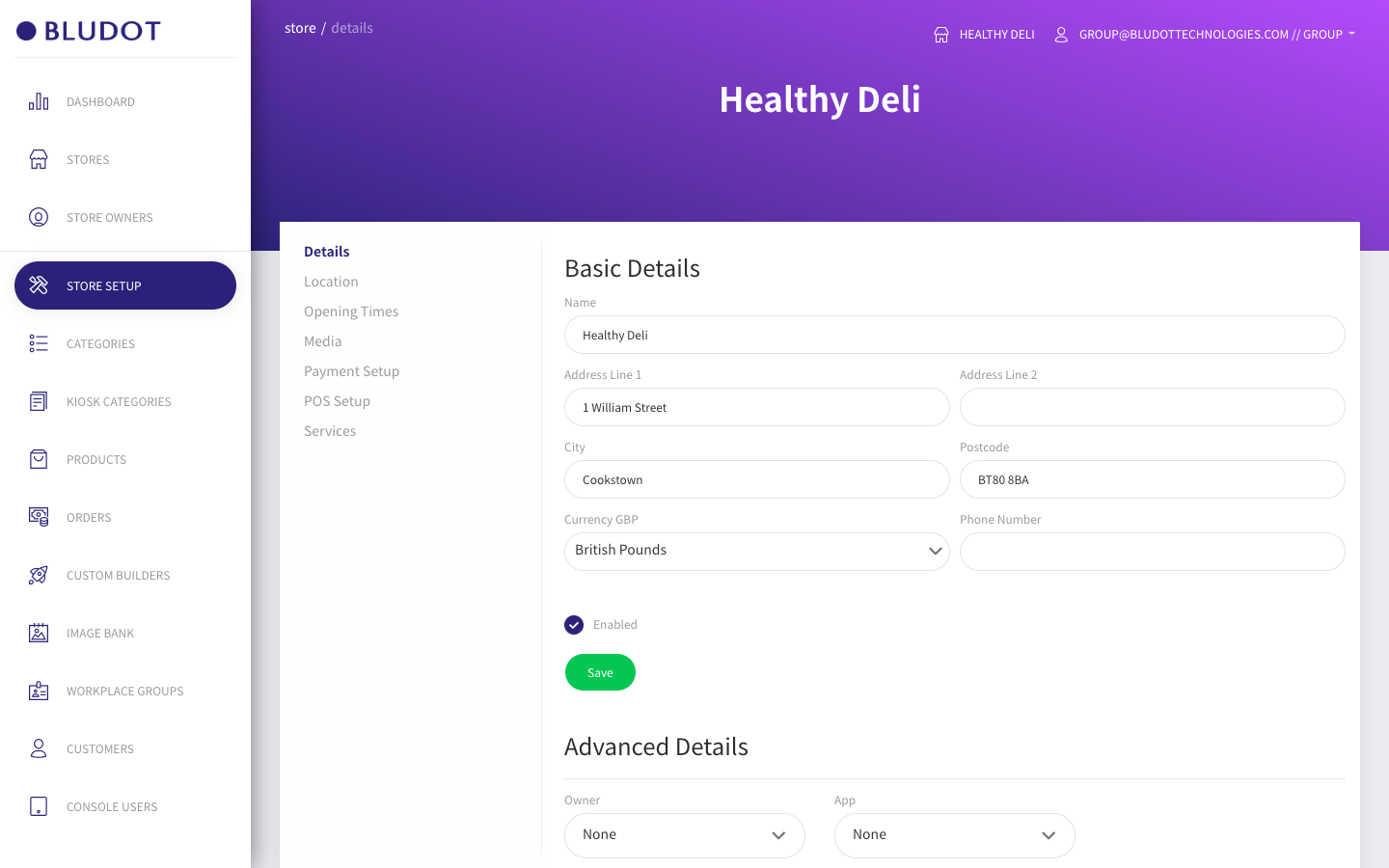
- At the bottom of this screen, please select the required Store Owner and App from the dropdown lists.
- When selected, the owner or App will be saved automatically.
- This completes the inital setup and config of a store. Other setup can be performed by either the Group Management user or the newly created Store Owner. Please see the relevant section within Store Management for details.
