Overview
The fulfilment console allows printing of receipts/tickets to a STAR printer. In order to do this, a 'QZ Tray' print controller must be installed on the terminal to make the printer visible to the console.
Downloads
Installing Printer
- Connect Printer via USB to the terminal. After printer is setup, please ensure the same USB port is used each time as using a different port will attempt to re-install the printer.
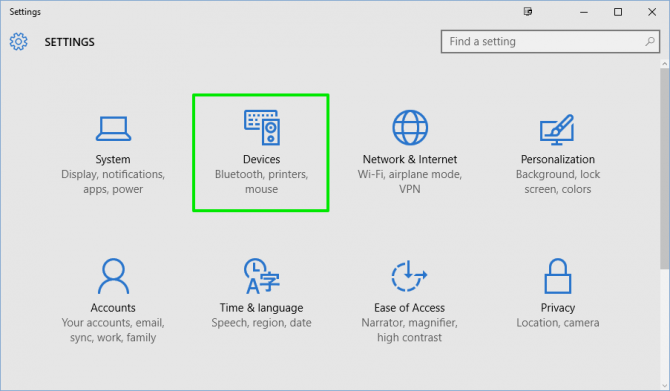
- Select the Start button, then select Settings > Devices > Printers & scanners.
- Open Printers & scanners settings
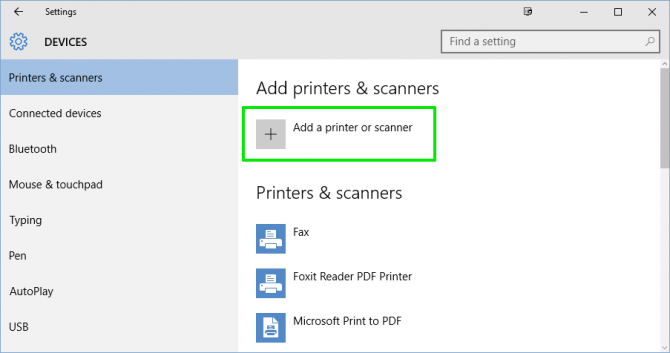
- Click "The printer that I want isn't listed" link and then select "Add a local pritner with manual settings". Follow the instructions to add it manually using the Star Printer drivers as downloaded above.
- Note: Please ensure the printer has the word 'Star' in the name.
Installing Controller
- Download the QZ Tray application above. Double click and follow instructions to install.
- Java be be required depending on your setup. This is included in the full install package above.
- One installed, insure the tray icon is running. This should be coloured green to indicate it is running correctly.
Printing from Console
As orders are placed the console will automatically print these orders for the logged in user. To make sure printer is connected and live orders are coming through please check the folllowing:
- Printer is installed
- QZ Tray is installed and running (should be green icon in tray)
- When connecting for the first time you will see a warning message from the QZ Tray application. Accept this dialog and check to not show again.
- When logged into console you should see a small spinning icon in the top-right corner of the blue header bar. This is the console connecting to the live order system and should disappear after a few seconds to indicate live orders are connected. If this spinner does not disappear after a couple of minutes please refresh the browser (not the refresh icon in the blue header bar).
- By navigating to the 'More' tab in the console you will see printer status in the blue header bar.
- 'Print Controller' indicates the successful connection of the QZ Tray application. If this says 'not connected' there either QZ Tray is not running or there is an issue with your installation.
- 'Printer' This will show the name of the printer currently being used. The system defaults to the first STAR printer found.